
Since I’ve moved digital with my planning, I’ve also been making an effort to keep track of a few recurring tasks digitally.
Recurring tasks is an area I was never super great at managing when using paper, though it’s certainly not the paper’s fault. I just never really had a solid system in place for these.
But I was getting annoyed with the feeling that there were these things I wanted/ needed to do frequently, but not daily… and yet they were repetitive enough that I didn’t like cluttering up my regular to-do lists with them.
Monthly Tasks
In no particular order, some recurring monthly tasks for me are:
- Wash my van*
- Clean out/ back up last month’s photos
- Update financial spreadsheet
- Review Google Keep/ Google Drive- file and label any straggling notes or docs
- Back up my blog posts
- Clean out my podcast queue
- Review the month’s photos and select some potential Christmas Card photos, put in digital album (*new this year- hoping that if I do this each month, it will make my Christmas card photo selection a snap come December!! Will report back. 😆)
- Clean out my purse/ wallet
- Save my workouts to Google Drive (I get a monthly plan by email and just like to make sure to also save them to my personal long term storage for future use)
- Clean my office
*I historically wash my vehicle maybe once a…. year. LOL. But for any new readers, I have a brand new minivan!! So, since this fall I have been very motivated to keep it nice. Also, to help myself with this, I recently purchased two packs of those multi-pack gas station car wash cards from two local high school swimmers doing a fundraiser. So I now have like, 10 car washes all pre-paid and ready to go.
So, how to track these Monthly Tasks digitally?
By using Google Tasks, of course. 🙂
They could in theory go on my standard “Upcoming” list (in Tasks), but I really prefer to keep that list more for specific, one-off tasks (e.g. my husband’s birthday is coming up soon and I want to figure out a gift in the upcoming future= UPCOMING list.)
So I created a list titled Monthly List and just listed them all there.
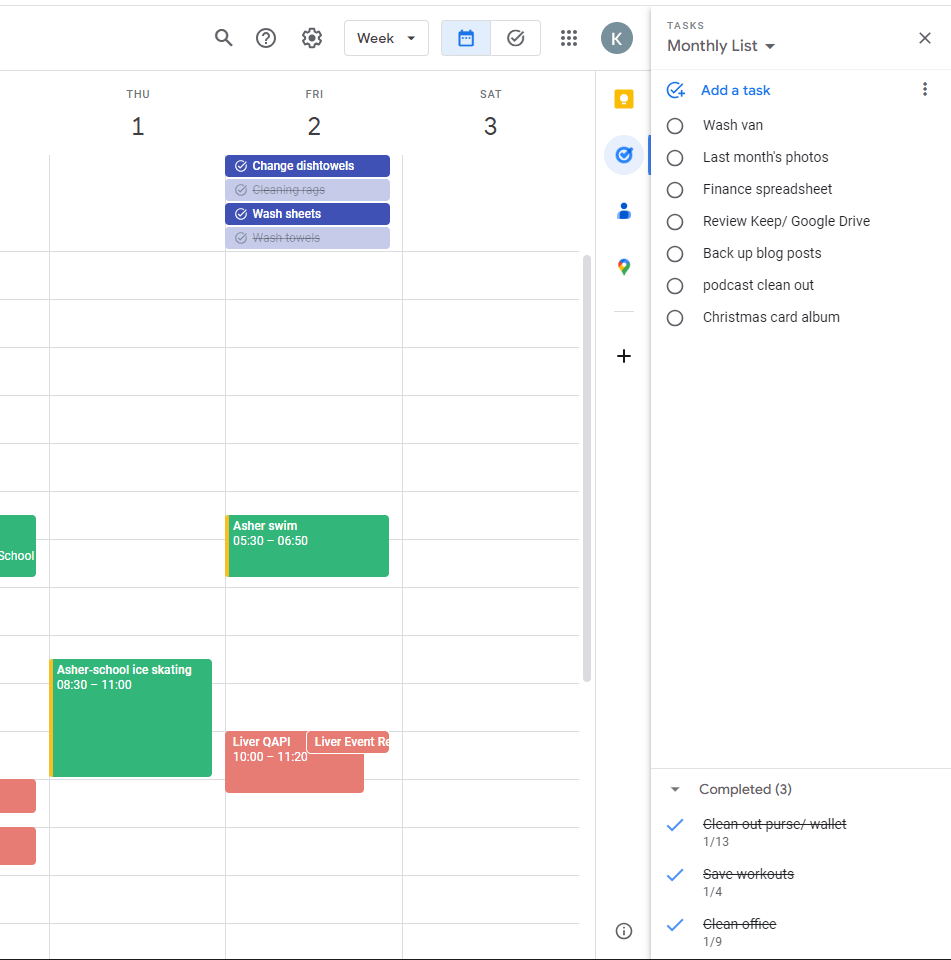
I then check them off as I do them and list in the comments which day I did it. Next month I’ll just re-set them all to unchecked and start over!
*Don’t judge my current state of only 3/10 done. 😆 It’s ONLY the 30th today. We still have a whole other day before the month ends!! 😅
I love having them accessible from the sidebar in Tasks, either from Gmail or my Google Calendar (it’s the same sidebar.).
Weekly Tasks
For weekly tasks, there are just a few that I felt strongly about wanting to keep tabs on. The following are kind of random, but just kept getting away from me….
- Change kitchen dishtowels
- Wash cleaning rags*
- Wash sheets*
- Wash towels (especially important because Asher is a swimmer and uses tons of extra towels)
Without any set day or reminders for these, I really struggle(d) to remember when we last did these.
*Sorry if this makes me sound gross, but I probably wasn’t changing my kitchen dishtowels frequently enough. Or my sheets. (Though realistically we still often push the sheets out to every 2 weeks…. If you are a “wash sheets every 3 days” person, just move along and pretend you didn’t see that.)
For these, since there are only a few, I decided to add them as TASKS directly on my calendar, repeating every Friday.
If you click on anywhere on Google Calendar, it gives you the option to add either an Event or a Task.

If you select Task, then it puts the to-do item on the selected day as a “checkbox” item. An event would just list it like a normal entry (see “Asher swim” below).
Then, the tasks will show up like this:

As you can see, I have already “checked off” two of the tasks for this week (wash cleaning rags and wash towels). Still need to change my sheets and change my dishtowels by Friday.
These Tasks that you add then appear on a special Tasks calendar, which comes a as a default on Google Calendar. (See “My Calendars” below.) Any of these can be checked or unchecked, depending on if you want to see them or not.

It also drops any of these special tasks that you put on your calendar onto a “My Tasks” default list in Google Tasks on the sidebar.

The Tasks feature on Google Calendar is a GREAT way to remind yourself of things you need to do on a specific day, too. Especially for things that are out in the future, but are truly a Task. (Example could be: Sign up for camp on a certain day 2 months from now when registration opens. When March 1st comes, you’ll have a checkbox waiting for you to mark off!)

Of course you can just add those on your calendar as an Event, but there is something very satisfying about clicking the Task icon and having the checkmark go “check!” and then it gets greyed out. 🙂
Well! That turned into a more long drawn out explanation than I was intending. Sorry! This stuff is SO FUNCTIONAL but can be a wee bit hard to explain… briefly. 🙂
How do you keep track of recurring weekly or monthly tasks? Do you have any questions? Let me know!
I’m still planning to share more about my Google systems and even more about Google Tasks- this is just a specific bit about the weekly vs monthly tasks. I have a bunch of other lists and ways I use it!
*And now, I can go into Google Keep and archive the Note I took a few weeks ago in my Blog folder, reminding myself that I wanted to write about this topic. 😉
Daily Gratitude:
I am grateful for being able to go watch Asher’s 8th grade play in a Teachers vs 8th graders volleyball game today. They do this each year and it’s super fun. 🙂
 GRATEFUL KAE
I love this, Kae! I have a similar set up with Google tasks. Half the reason I started using Google tasks is because I could see it from my Google Calendar. I like that you put the done date in the comments.
You may already know this, but just in case, recently Google added on the calendar a button in the upper right-hand corner where you can toggle to a full screen tasks view. It puts all your tasks list side by side. I really like it. I’m enjoying these productivity conversations! I’m always curious how folks are keeping track of things so I can pick up tips. I’ve found I’m more scatter brained in this season so if it isn’t written down, it doesn’t exist for me 🤦🏻♀️
LikeLike
Yup, you hit the nail on the head- the game changer for me with Tasks is that it lives there on the side of Google calendar and/or Gmail. Plus the ability to seamlessly switch between the phone app and computer version.
I did know about the full view for Tasks! That’s another great option. I do often switch to the full screen view when I’m reviewing ALL the lists, like on a Friday afternoon.
I add things to Tasks constantly and am not sure how I’d function at this point without it! haha.
LikeLike
how do you back up your blog posts?
thanks for introducing me to google tasks. I need to think about what are my monthly and weekly tasks first and implement these, sounds easy and functional.
LikeLike
Yes, if you already use Gmail, Tasks is already there automatically embedded on the side of the screen. So it is super easy!
I have been just saving each post as a pdf and then saving in my Google Docs by month. My WordPress account automatically backs up like a compressed file of some sort I think, but I wanted a full version saved with the photos, etc. So I just click through each post, right click, select “print”, then “print to pdf”, and then I save it. Nothing fancy but it works!
LikeLiked by 1 person
I love Tasks and Keep and the Calendar(s)! My brother and I have even taught my parents how to add things to the family calendar and they are getting pretty good at it AND I think they secretly have one that they share now, because sometimes they accidentally put those events on our family one… It is so cute and fun that they are learning too.
I have been using Keep for ages, but just realized that I have NEVER archived anything. I am like you and love being able to keep everything but not have it physically in my house; however, I usually just pin the ones that are current/relevant, tag all of them so I can find them, and then unpin once they are out of date or no longer needed. Now I am going to go and do some archiving!
LikeLike
That’s awesome that your parents are learning to use it! I have tried to encourage my dad to lean in to some of these digital tools- for a retired guy he has a lot going on and many things to keep track of, etc. I know some these tools would likely be useful for him but I guess he’s just used to how he does things at this point and not that interested in trying something new. ha.
I mostly just pin my Grocery List and my Monthly Meal Plan in Keep. Otherwise I have been just keeping the notes in each labeled section, and after I’m “done” with it (if it’s like something I’ve saved to maybe use in a blog post, for example) then I archive it. I like that it also still keeps it in the same label, just moves it to the bottom in an “archive” section. So you could have your Pinned notes at the top, then your regular notes, and then archived ones at the bottom of the screen. I really like that it doesn’t completely make them disappear!
LikeLike
I just see the car needs to be cleaned, or the towels need to be changed.
Then I do it.
The End 🙂
You are amazing!
LikeLike
Oh, TRUST ME, that is my default method too! And what I have typically always done/ still often do. But I was finding myself lacking a little in the “noticing” department 😉 Or in the case of my kitchen dish towels (the ones we dry our hands on that hang on the oven), they often “look” fine to me (kinda same with bath towels?) But logically I know that they should probably be changed at some point (sooner than I was doing)…. hence attempting to get some of these more on an automated schedule! Not claiming I currently have this all down- these recurring tasks are a work in progress for me! 🙂
LikeLike
I do not do any of this digitally, so I’m going to focus on what I thought was interesting here.
We are lucky if we wash our sheets once every three weeks, but it’s generally more like once a month, so there’s no shame in your sheet washing game. But we have dozens and dozens of kitchen towels and use five or six a day. If anything other than a dish or clean human hand touches a kitchen towel, it can not be used for anything else! Ha! I think it’s fascinating how people do this sort of thing.
LikeLike
Ok, I’m glad I’m not offending anyone with my sheets habit. hahaha.
And I should probably have specified- by “kitchen towels” I was referring specifically to these two dish towels that hang on our oven, and are used basically exclusively to dry our hands after we wash them. We very rarely use any dish towels to dry dishes (primarily a dishwasher household and/or drip dry for hand washed things). And then for the smaller kitchen rags that I use to wipe the counter, wipe the stove, etc., those I do change very frequently (daily probably) and toss in a bin. I also have lots of those!
But those hand towels are the ones I kept neglecting to change… I mean, we do only dry our clean hands on them. But still, they get damp and need to be changed! I’d say 1-2x/ week feels sufficient on those (for me). I have a good stack of those bigger hand towels too but for some reason kept leaving them for too long.
LikeLike
I’m a hardcore Google calendar/tasks user and love that you are spreading the word! I totally just added a monthly task of picking good family photo contenders for the holiday card–great suggestion thank you!
LikeLike
I feel like it’s a simple thing that can pay off in dividends later?!!? Especially because I generally make those “multi-photo” cards and like to have lots of good options. AND I take a zillion photos. So it’s extremely overwhelming at the end of the year otherwise.
LikeLike
Hahahaha… wait. Does anyone change their sheets every three days???
I’m a paper planner person, and I’m not great about these types of tasks either. As you said- I don’t think I can blame the paper. I don’t see myself switching over to digital anytime soon, but maybe this post will inspire me to get SOME sort of a system going for myself.
LikeLike
I hear you! Nothing wrong with paper, either! I do think I’ve found some unexpected benefits from moving to digital, after also being pretty hardcore Team Paper for a long time. But if what you’re doing works, definitely no reason to switch, either!
LikeLike
This post was perfect because I could kind of picture how you used Google from the podcast but it’s helpful to see it. I’m going to experiment with this.
LikeLike
I loved this post! I still have a paper planner, but I do A LOT in Google Calendar + Tasks! I am currently trying Any.Do on my phone (which syncs with my Google Calendar)… I am looking forward to more posts about planning!
LikeLike
I am going to leave a plea for help, not a comment.
What would you suggest for someone who has a) >10000 Gmails (yes, that’s the right number of 0’s) and b) some of those emails are “treasure” emails?
The problem is, I email both of my parents daily. Those build up and most could be deleted, but occasionally my dad will throw in an attachment of an old picture that I might want to save, etc. Or I’ve given him advice on a computer issue and I want to keep that email so I can find it in the future. I haven’t, unfortunately, made a habit of labeling the important ones, or starring them, so… suggestions? My one quibble with Gmail is the lack of folders. If I could move those emails to a safe place then delete a lot of what’s left, I’d be in great shape. Unfortunately, I can’t. Help? (I’m going to put this on my blog if I ever write another post, sigh…) Thanks! Loved this post. ❤
LikeLike
Hi Anne!! Ok, so I was in this EXACT situation a couple years ago. I had.. wait for it… 85,000 emails in my Gmail. For a long long long time I just never deleted any emails really. It was crazy! I also had similar important/want to keep emails interspersed (but there was a ton of junk, too).
What I did: I decided to break it down into small pieces. I would delete/sort in “sessions”. So every day or two I would sit down and sort 1,000 emails. A large majority I could just click click and delete (check the boxes on the side to delete a bunch at once). Gmail doesn’t have “folders”, but it has “labels”, which function the same. So I have labels for Kids- School, Household, Family, Important to Keep, Medical, etc. It’s easy to label them from within Gmail or even from your phone.
I just kept working my way through, a little bit at a time! It took me maybe a month or so. Just kept chipping away. Sometimes if I had more time I would do more than 1,000, but it helped to set a limit (I would just look at total eg 84,250 and delete/label (which gets them out of your main inbox) until I was down to 83,250.
Another alternative that people recommend is to just Archive everything. Say forget it, archive it all to a blank slate (all those parent emails would still be in the Archive section then) but your inbox would be empty. Then, going forward, you can implement an inbox zero system where you label, move, delete emails on a weekly basis. That’s what I do! It’s been a couple years since I dealt with the 85,000 emails and I have successfully kept up this organized system (inbox zero every week or two).
LikeLike
P.s. email me if you want more help!! Happy to jump on a call or zoom and help further!
LikeLike
THANK YOU! I think this is like my 5000 photos. I just have to do it. Suck it up, basically. I like your idea of focusing on a set number each day. I’ll probably start, at least, with a smaller number (thinking 200, which is four pages of emails). I’m also thinking that I’ll start with the oldest ones, although that might be up for debate. I didn’t even think – but you’re right, labeling gets the emails out of the inbox! I also have labeled emails for things that are in the past (e.g., trips) and that I don’t need anymore. (And also, LOL, I need a label for “Dad Computer Advice”!) Thank you so much. I’ll follow up by email if I am still struggling. 🙂
LikeLike