
Now that I’m sort of getting “back in the groove” of life, I’ve resumed my current method of time blocking. Since I’ve been really leaning into my Google Calendar, I’ve been trying to fine tune some of my digital habits and systems.
One thing for me that has never really worked is doing time blocking on paper. The reason being, there’s just too much uncertainty usually in my schedule. I typically have a couple “rocks” in the day, but the rest of my days are often fairly fluid and varied. My job is pretty flexible and I’m also the primary “driving” parent most days (before 6 p.m., anyway)- but where and when I’m driving can vary also day to day.
Time blocking is probably not necessary for people with a very strict, 9-5 job. But because I often work a bit of a “piece-mealed” schedule, with breaks to drive kids and/or do other things, I find time blocking to be pretty essential.
I do not always time block, but I definitely notice that when I don’t, my life just doesn’t work nearly as well. I flounder around more and get much less done.
Before, when I was doing more paper planning, I kept most of the kids’ activities, events, etc just on my paper calendar. And I used Google Cal just for sketching out my time blocks and not much else. However, now that I’ve moved to Google Calendar as my main “everything” calendar, I have changed up my system just a little.
I now have 4 main calendars that I utilize:
1. Kaelyn
This is my primary calendar. My personal calendar items go here- meetings, personal medical appointments, personal obligations that only affect me. *I have a separate Outlook calendar just for work, but I will put important work obligations like meetings on my personal calendar as well.
2. Family
The calendar that gets the most action. This is where ALL kids/family stuff goes. Blue= Ethan, Green= Asher. Yellow= both kids/whole family.
3. Workouts
I keep this one un-checked (not visible) most of the time. But this is where I have been sketching out which workouts I plan to do each day (in Red). These I just list as an “All Day” event so they aren’t assigned to a specific time- I just like to have my day’s workout plan visible somewhere.
4. Timeblock
The latest addition! I decided to create this separate “Timeblock” calendar so I didn’t have all these separate events cluttering up my “real” calendar. This is the purple calendar below.
This has worked so beautifully for me!!!! Most mornings (or actually often the previous afternoon) I try to look at the upcoming day and sketch out what’s going on.
Here is the “full view” that I have pulled up on my desktop basically all day, every day, except obviously much larger on my big desktop monitor. (This is a made-up/ sample calendar I made; my current week has too many personal details on it! But this is very similar to how it normally looks.)
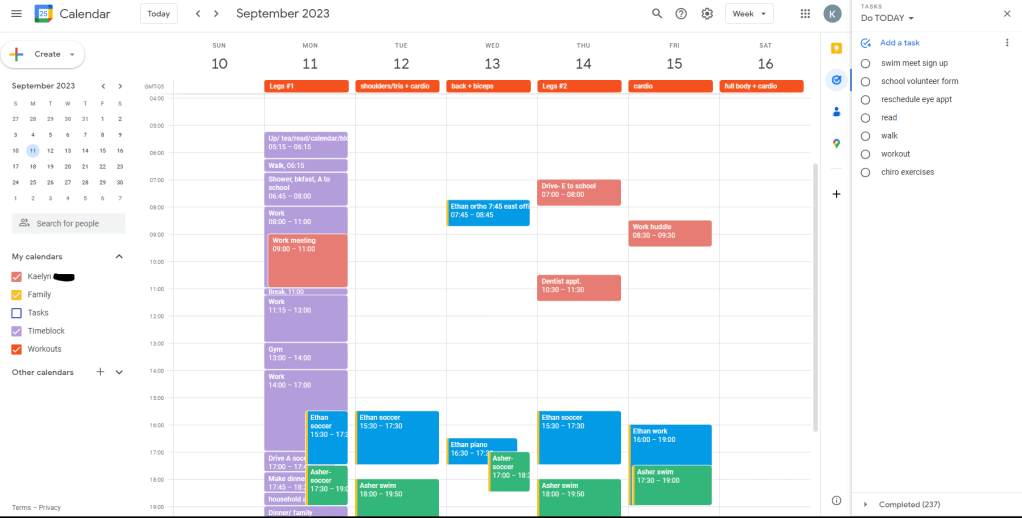
The thing I LOVE about doing time blocking digitally is that it is soooooo easy to just slide the blocks around, shorten them, lengthen them, etc. I used to get so annoyed when trying to do this on paper, because I would write down one time and then be like, Oh wait, no. That won’t work- I need another 30 minutes there. But meanwhile, I already wrote down something else….
I feel like my days are usually kind of a big puzzle. It usually takes me several attempts to make it all line up in a way that actually works and makes sense!
Here’s a zoom in on a (sample) time blocked day for me, with the other calendars unchecked:
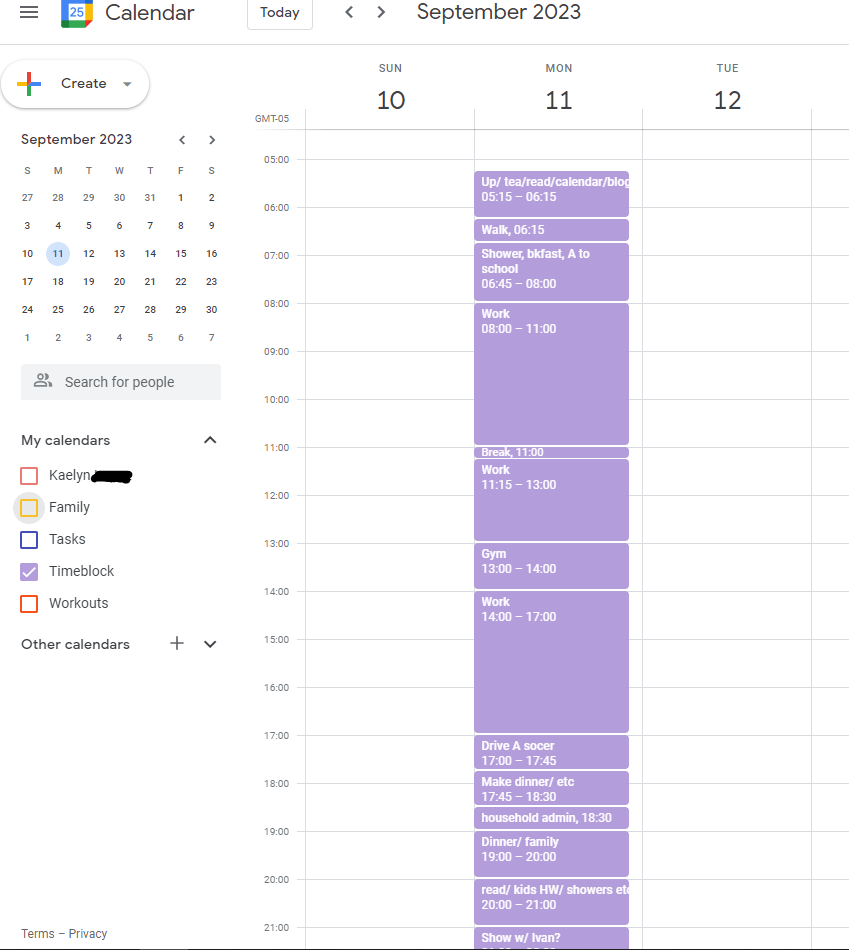
Typically, I keep just the Timeblock, Kaelyn, and Family calendars checked. I usually uncheck Workouts, since I don’t need to look at that all day.
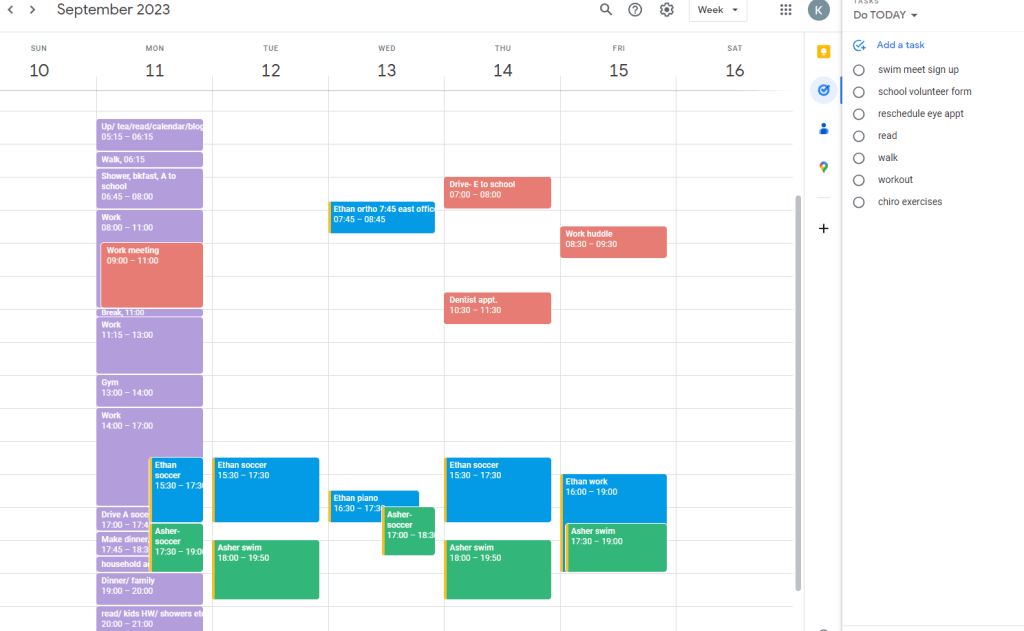
Zoomed in:
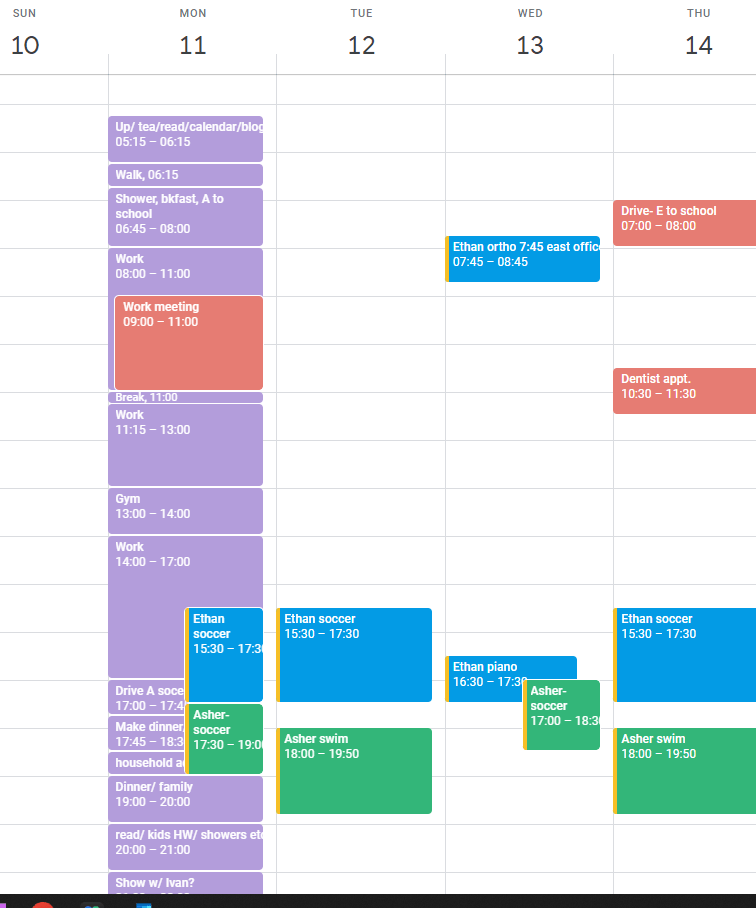
This separate Timeblock calendar works so well because I just uncheck it if I want the more simple, ACTUAL events version (actual places I need to be- like the kids’ activities, etc.):
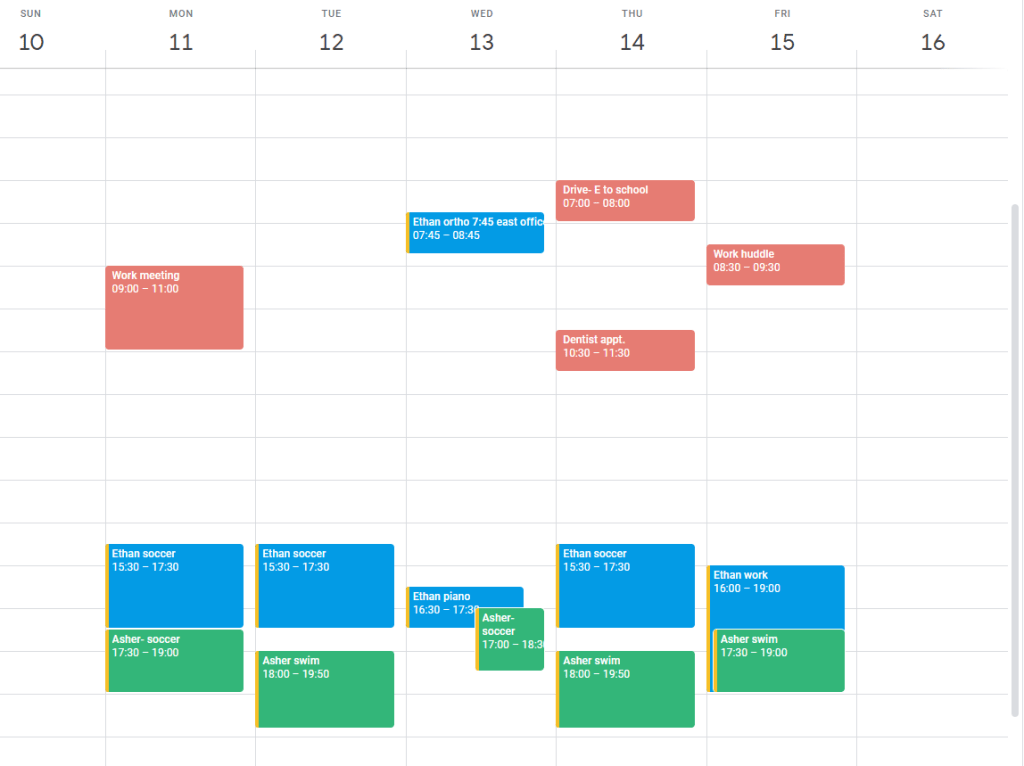
When I first started using Google Cal more and used my personal Kaelyn calendar for time blocking too, it was too much. This is perfect. It’s there when I need it, and gone when I don’t. 🙂
ALSO- as I do my timeblocking, I also update my DO TODAY list in the sidebar in Google Tasks. I have many other to-do lists (in the drop down) including one titled THIS WEEK, so I’ll usually just browse that and pick out a couple things I need to prioritize on that day and switch them to the DO TODAY list.
I’ve also started adding my personal “daily items” on here too so I can check them off (walk, read, workout, etc.)
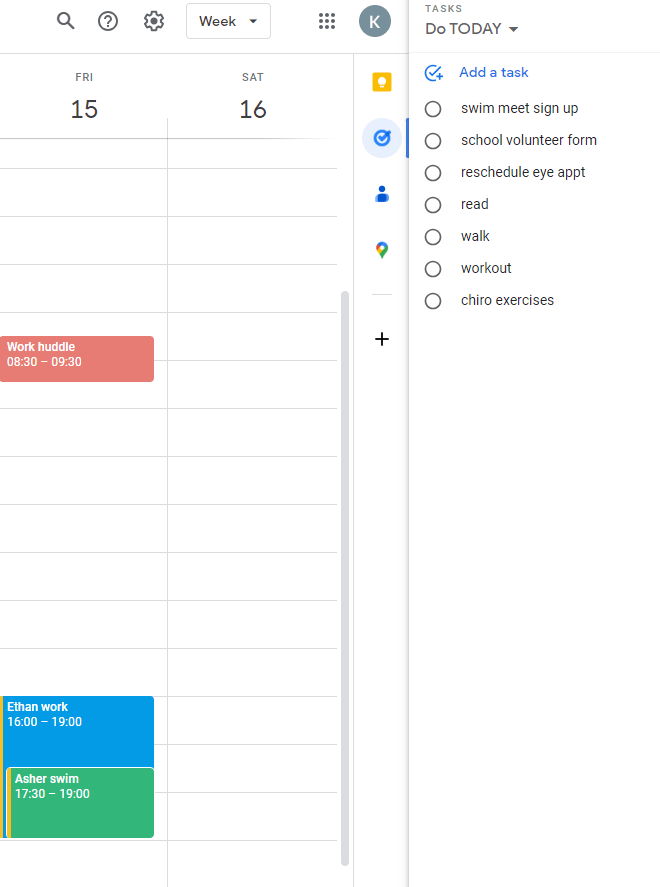
Anyway! Nothing overly revolutionary here, but just sharing what I’m currently doing and is working out well!
Oh, and I also have the Google Calendar widget on my phone AND I can see my Google Cal on my Apple Watch! So no matter where I am, I can easily pull up my time blocked plan for the day. 🙂
Daily Gratitude:
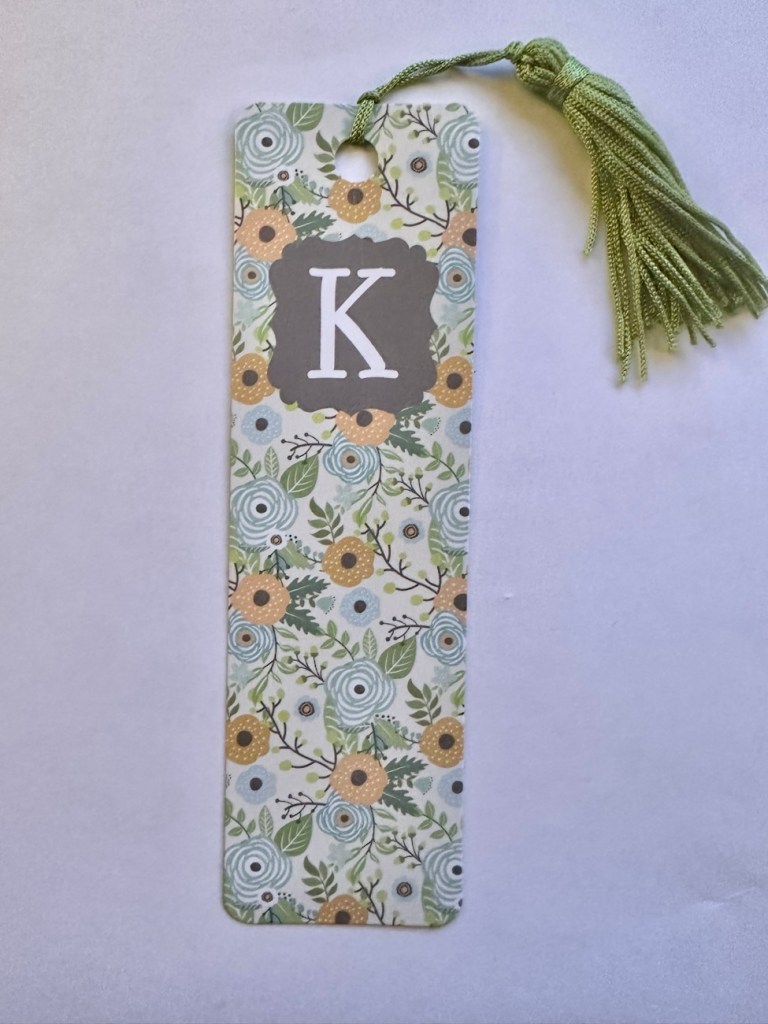
I am grateful for my pretty bookmark. I have probably shared this before, but I was just admiring it again this morning as I slid it between the pages of my book. If you read paper books and don’t have any fun and/or pretty bookmarks, get some!! It’s such a small, simple pleasure. This one was a gift from my mom and is my favorite. I also have started collecting them when we travel.
 GRATEFUL KAE
Love your bookmark!
And I find it so fascinating to learn how other people manage their time! Your system sounds awesome, to tell you the truth. My husband and I share a calendar and it’s honestly not great. But the thought of setting up a whole new system is very daunting to me.
LikeLike
Well, if it’s Google calendar… it couldn’t be easier! Just click the plus sign to “add a new calendar”, and done!! Not sure if I’m misunderstanding what you mean… but in about 1 second you can pop another calendar on there and name it whatever you want! And then you can share, or not share, the others. I only share the Family calendar with my husband and the boys; my other 3 calendars are private, only visible to me. I also have some Shared calendars that I keep unchecked like the Swim Team calendar, the School calendar etc. But I don’t own those- those are managed by the team/school and I can just view what they put on there. So for example with those I will just check the swim team box once or twice a week so I can see it to add practice times and locations to my personal/family calendars… but I don’t leave those up all the time or they would overwhelm my calendar! 🙂
LikeLike
I want to try time blocking as I plan to go back to part-time work, remotely and have sooo many things and people to plan for. This is inspirational!
LikeLike
I am a big fan of Google calendars and although I love paper, have been using the online version for a few years pretty much exclusively now. It is just so easy (like you said) to have one for yourself and one for your family etc. I actually have one with just my brother where we put races, events, hiking trips etc. that we may want to take (just the two of us), then I have one with my parents + brother where we put family events. Then I have my personal one, but will often invite people, for instance drinks with work friends or a Zoom with a far away friend etc. I also color coordinate so that I can easily see or find what I am looking at or for!
I think we may have talked about this (?) but I also use Google Keep to make lists and these can also be shared with other collaborators, so I have found it very handy when going grocery shopping or on a camping trip etc. so that everyone can see it and check it off together.
LikeLike
I love this approach. I think time blocking on paper would be so hard. I don’t like changing things or crossing things out when they are written down in my paper planner. That said, time blocking doesn’t really work for me since my day is totally dictated by requests from my sales partners. There are things I need to get done, especially around quarter end but I often get interrupted! I have started to color code client calls with red so I can easily see when I have client interactions. That kind of gives me a visual of how, well, stressful the day is potentially going to be!
LikeLike
Love how simple it is. I have the paper version of this (which requires two planners essentially – my “time block” is my daily notebook) and I will not go to digital b/c I find the paper more fun/satisfying to use BUT – I like the simplicity!!!! It looks like a great system.
LikeLike
I use my outlook calendar for everything – and spent yesterday afternoon moving everything to gmail as I’m moving jobs. My husband didn’t appreciate the 40 calendar invites he got. I use Notion for my big to do list/project plans, and a paper planner sheet for my weekly planning, which seems to be a nice balance.
But this is really smart. I’m hoping to do a better job designating days of activities – solid writing days, teaching days, admin days and leaving all the admin to the appropriate day. I’ll have a shorter commute – no plane involved – but will spend a decent amount in transit – bus and train so I can probably do a decent chunk of email / reading. I think 2 days a week to start, but I’ll probably drop down to 1 once I get the lie of the land.
LikeLike
I love the time blocking approach, but I don’t really need it for my work day (unless you call the “meeting” and “work” blocks on my work calendar “time blocking” LOL). It does make sense when more people are involved and you’re squeezing in your work between personal appointments/commitments. It definitely works best digitally because it’s so easy to adjust if necessary!
LikeLike